
Open Ticket Announcements Contact Us
Login Register
Avalon Hosting Services
  • 0 Shopping Cart
  • Dashboard
  • Store
    • Browse All
    • Dynamic D Individual (Gen 1)
    • Dynamic D Individual (Gen 2)
    • Dynamic D Individual (Gen 4)
    • Dynamic D Business (Gen 1)
    • Dynamic D Business (Gen 2)
    • Dynamic D Business (Gen 4)
    • WHOIS Lookup
    • Wordpress Hosting
    • Woocommerce Hosting
    • Dedicated Server
    • SSL Certificates
    • SiteLock
    • CodeGuard
    • Avalon Software
    • Google Workspace
    • Virtual Private Server (VPS)
    • Virtual Dedicated Server (VDS)
    • Titan Email
    • SSL Certificates
    • Website Security
    • Website Backup
    • E-mail Services
    • Professional Email
    • Site & Server Monitoring
    • VPN
    • SocialBee
    • Register a New Domain
    • Transfer Domains to Us
  • Announcements
  • Knowledgebase
  • Service Status
  • Affiliates
  • Contact Us
  • More
  • Account
    • Login
    • Register
    • Forgot Password?
  1. Portal Home
  2. Knowledgebase
  3. WordPress
  4. How to remove your post in WordPress?

  Categories

Backup/Restore
4
Client Area
1
Cloudflare (cPanel)
9
CloudLinux (cPanel)
10
cPanel
4
cPanel - Control Panel
24
Databases
11
DirectAdmin
48
DNS - Nameservers
6
Domain Management
10
Email
17
FTP
9
Installing a Control Panel
6
Mail Filters & SPAM
8
Mobile
11
Others
3
PayPal
7
Plesk
47
Security
10
SiteWorx (Control Panel)
61
Softaculous
76
SolusVM
18
SSL
5
Virtualizor
19
WHM
18
WordPress
17

  Categories

  Tag Cloud

Avalon cPanel how to Step by Step guideline

  Support

My Support Tickets
Announcements
Knowledgebase
Downloads
Network Status
Open Ticket

How to remove your post in WordPress? Print

  • 0

You can remove your published or draft post in WordPress.


1. Login to your WordPress admin dashboard.


2. Under the dashboard menu, hover your mouse on Posts and then click on All Posts.
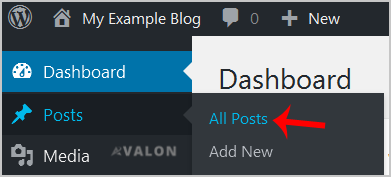
wp-first-time-all-post.gif


3. Choose the post you wish to remove, and the Trash option will appear, Click on it.
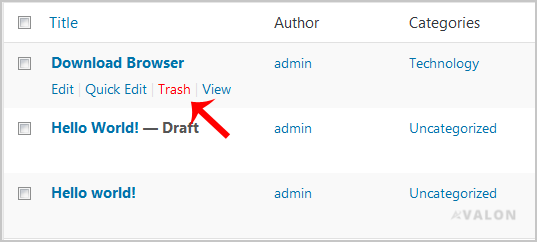
wp-removing-selected-post.gif

You will get a success message as 1 post moved to the Trash.


Was this answer helpful?

Related Articles

How to access the WordPress admin account? WordPress is a CMS software with an easy to access admin account and a simple to manage blog... How to Install a Plugin in WordPress? You can install a plugin in WordPress in several ways. The best way to install a plugin is to use... How to Manually Install a Plugin in WordPress? The automatic installation of a plugin is easy, and you can also install on manually. It will... How to Deactivate and Delete a Plugin in WordPress? If your plugin is not in use or you wish to deactivate it, you can do this from the WordPress... How to Forcefully Update a Plugin in WordPress? If your WordPress plugin is not working correctly or you want to re-install it even when it is...
« Back

  Tag Cloud

Avalon cPanel how to Step by Step guideline

  Support

My Support Tickets
Announcements
Knowledgebase
Downloads
Network Status
Open Ticket
Avalon Hosting Services

Enterprise-grade hosting services built for reliability, security, and predictable growth.

System Status: All primary services operational

Trusted payment methods and verified global infrastructure partners.

Get Avalon Hosting Services App on Google Play

Services

  • Contact Us
  • Announcements
  • Knowledgebase
  • Network Status
  • Client Area
  • Open Ticket
  • Shopping Cart
  • Terms of Service

Hosting

  • VPS hosting
  • Dynamic D hosting
  • VDS hosting
  • Dedicated servers
  • WordPress hosting
  • eCommerce hosting

Business Services

  • SSL certificates
  • Security and privacy
  • NordVPN privacy
  • Business email
  • Migration services
  • Monitoring and uptime

Legal

  • Terms of Service
  • Privacy Policy
  • Cookie Policy
  • Refund Policy
  • Disclaimer

Partners

  • Affiliates
  • Reseller hosting
  • Domain reseller
VISA AMEX PayPal ₿
Copyright © 2007 - 2026 Avalon Hosting Services. All Rights Reserved. Security-first infrastructure with round-the-clock support.

Loading...
Loading...
Choose language
العربية
Azerbaijani
Català
中文
Hrvatski
Čeština
Dansk
Nederlands
English
Estonian
Persian
Français
Deutsch
עברית
Magyar
Italiano
Macedonian
Norwegian
Português
Português
Română
Русский
Español
Svenska
Türkçe
Українська

Choose Currency

$ USD
₹ INR
‎৳ BDT
£ GBP
€ EUR
$ AUD
AED AED
¥ JPY
$ CAD
$ SGD
₽ RUB
¥ CNY

Generate Password

Please enter a number between 8 and 64 for the password length